Comprehensive Guide on How to Record Microsoft Teams Meeting

In this article

Comprehensive Guide on How to Record Microsoft Teams Meeting
Recording digital sessions is essential for maintaining accurate records of decisions and sharing knowledge with absent team members. When you learn how to record Microsoft Teams meeting, you create a permanent archive of audio, video, and screen-sharing activities. These recordings are stored in the cloud, allowing participants to review complex technical discussions or project requirements at their convenience. In 2026, capturing these interactions has become a standard practice for ensuring accountability and transparency in remote environments.
To initiate the process of how to record Microsoft Teams meeting, a user must usually be the organizer or a member of the same organization. Once the session starts, the recording captures everyone on the call, including shared documents and whiteboards. This functionality is particularly relevant for training sessions, where a single live demonstration can be reused multiple times, saving resources and time for the entire department.
Technical Requirements for Capturing Virtual Sessions
Before diving into the steps of how to record Microsoft Teams meeting, it is vital to check your permissions and storage settings. Most organizational policies require the recording feature to be enabled by an IT administrator. Users must also have sufficient storage space in their linked cloud drives to accommodate high-definition video files. Understanding these prerequisites is the first step in mastering how to record Microsoft Teams meeting without technical interruptions or data loss.
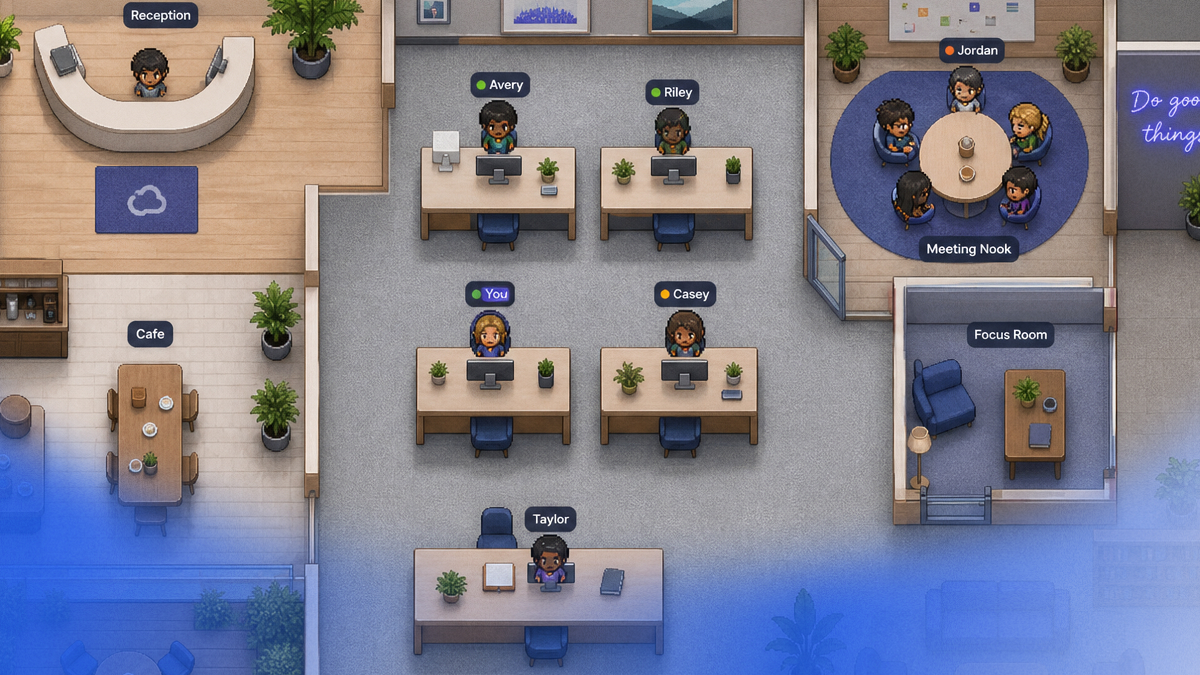
Effective collaboration often requires more than just a recording; it requires knowing who is available for a follow-up. While you are learning how to record Microsoft Teams meeting, you can enhance your team's workflow using Hurbly.ai. This platform provides real-time visibility into your team's presence, showing who is currently focused or busy in a session. By combining recording practices with real-time presence data, teams can reduce the friction of unscheduled communication and improve overall coordination.
Step-by-Step Instructions on How to Record Microsoft Teams Meeting
The actual procedure for how to record Microsoft Teams meeting is straightforward and can be completed in a few clicks. Follow these steps to ensure your session is captured correctly:
- Join the meeting from your desktop or mobile application.
- Navigate to the meeting controls and select the "More" option (usually represented by three dots).
- Select "Start recording" from the dropdown menu.
- A notification will appear for all participants, informing them that the session is being recorded for privacy compliance.
- To conclude the capture, return to the "More" menu and select "Stop recording."
Once you have mastered how to record Microsoft Teams meeting, the file will begin processing automatically. After the meeting ends, the recording link is typically posted in the meeting chat or saved in a dedicated folder. This accessibility ensures that anyone wondering how to record Microsoft Teams meeting can also easily find and distribute the final output to relevant stakeholders.
Benefits of Recording Team Interactions
There are several strategic advantages to understanding how to record Microsoft Teams meeting for your daily operations. Beyond simple documentation, these recordings serve as a legal safeguard and a pedagogical tool.
| Benefit | Description |
|---|---|
| Knowledge Transfer | New employees can watch past recordings to understand project history and culture. |
| Accessibility | Recordings allow users to enable closed captions and transcripts for better inclusion. |
| Accuracy | Eliminates the need for manual note-taking, reducing the risk of human error in minutes. |
| Flexibility | Team members in different time zones can catch up on discussions asynchronously. |
When you implement the steps for how to record Microsoft Teams meeting, you enable a more flexible work environment. This flexibility is further supported by Hurbly.ai, which allows you to see if a coworker is free to discuss a recording you just watched. Instead of guessing if someone is available, you can check their real-time status and initiate a spontaneous conversation, mimicking the natural flow of a physical office.
Best Practices and Privacy Considerations
When learning how to record Microsoft Teams meeting, privacy and etiquette are paramount. It is standard professional practice to announce your intention to record at the very start of the call, even though the system provides an automated banner. This ensures that all participants are comfortable with the recording and can adjust their participation accordingly. Knowing how to record Microsoft Teams meeting also involves managing the lifecycle of the recording, such as setting expiration dates to delete old files and save storage space.
Another critical aspect of how to record Microsoft Teams meeting is managing access permissions. By default, the person who starts the recording has full control, but they can grant "view" or "edit" rights to others. This level of control is essential for sensitive projects where information security is a priority. By following these guidelines on how to record Microsoft Teams meeting, organizations can maintain a high standard of data governance while fostering a culture of open communication and continuous learning.