Essential Guide on How to Use Zoom for Remote Team Collaboration in 2026

In this article

Essential Guide on How to Use Zoom for Remote Team Collaboration in 2026
Effective digital communication relies on understanding the technical aspects of virtual meetings. Learning how to use Zoom involves more than just clicking a link; it requires mastering audio settings, video configurations, and screen-sharing protocols to ensure professional interactions. As remote work evolves in 2026, knowing how to use Zoom efficiently allows participants to minimize technical delays and focus on the actual agenda of the meeting.
To begin, users must download the application and create an account. Once logged in, the interface provides options to start an instant meeting or schedule one for later. Understanding how to use Zoom scheduling tools is vital for organizing recurring team syncs. When a meeting starts, the primary controls are located at the bottom of the screen, where users can toggle their microphone and camera. Mastering these basic toggles is the first step in learning how to use Zoom without disrupting the flow of a conversation.
Advanced Features and Meeting Management
Beyond basic connectivity, knowing how to use Zoom for collaborative sessions involves using breakout rooms and whiteboards. Breakout rooms allow a large group to split into smaller units for focused discussions, which is a key skill for managers wondering how to use Zoom for workshops. Additionally, the screen-sharing feature enables users to present documents or software interfaces in real-time. When you learn how to use Zoom screen sharing, you can choose to share your entire desktop or just a specific application window to maintain privacy.
Security is another critical component of digital meetings. Users should understand how to use Zoom security settings, such as waiting rooms and meeting passwords, to prevent unauthorized access. By managing participant permissions, hosts can control who is allowed to chat, share screens, or unmute themselves. This level of control is essential for maintaining order during large webinars or sensitive corporate briefings.
Enhancing Real-Time Presence with Hurbly
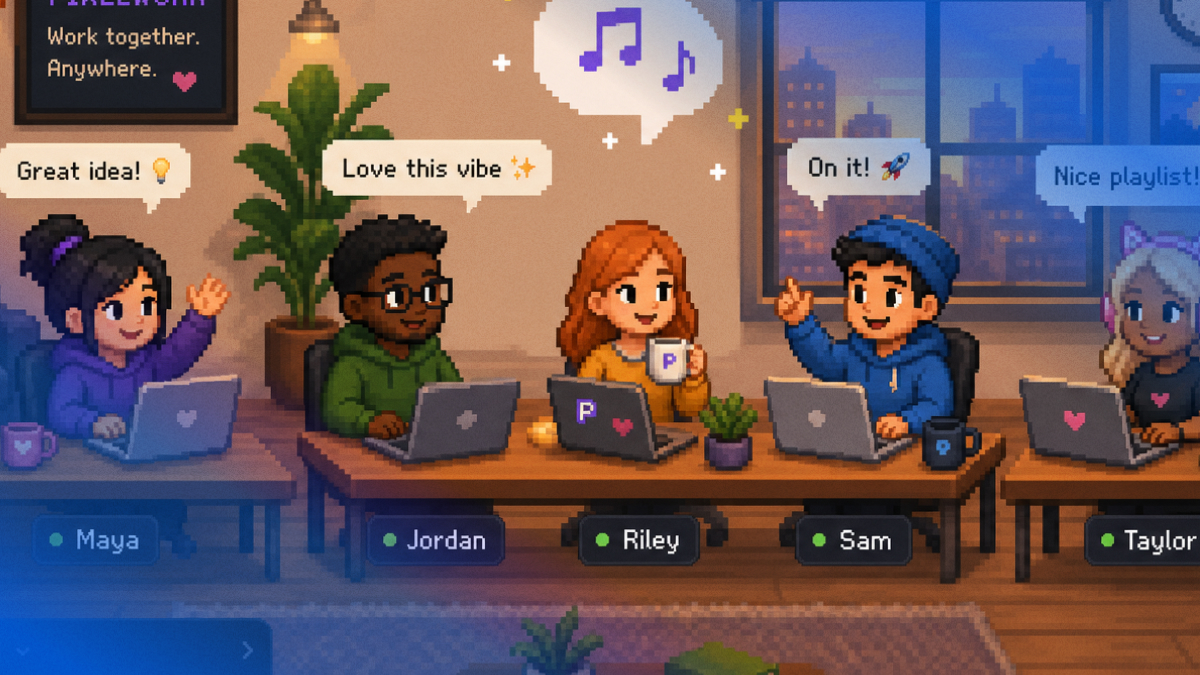
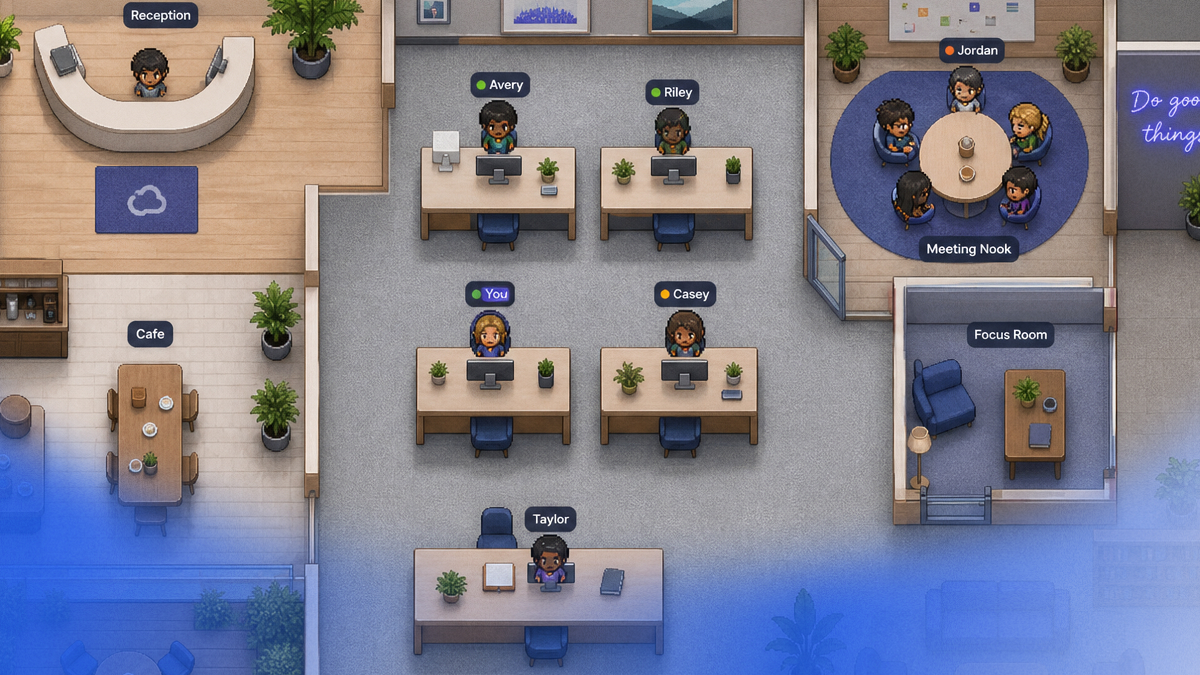
While video conferencing is excellent for scheduled discussions, it often lacks the spontaneity of a physical workspace. This is where Hurbly.ai complements your communication stack. While you are learning how to use Zoom for formal presentations, Hurbly.ai provides a continuous virtual office environment. It shows who is currently available, focused, or already in a call, reducing the need to constantly check calendars or send "Are you free?" messages before starting a video session.
Integrating presence awareness with video tools changes the team dynamic. For instance, if you see a colleague is "Available" on Hurbly.ai, you can quickly decide how to use Zoom to initiate a brief face-to-face chat for a quick decision. This combination replicates the "tap on the shoulder" experience of a physical office, making the transition between deep work and active collaboration much smoother for distributed teams.
Troubleshooting and Optimization Tips
Technical issues can arise even for those who know how to use Zoom well. Common problems include "unstable internet" warnings or audio echoes. To optimize performance, users should close unnecessary background applications that consume bandwidth. If you are struggling with how to use Zoom in low-bandwidth areas, turning off your incoming video can often stabilize the audio feed. Regularly updating the software is also necessary to access the latest security patches and features available in 2026.
| Feature | Function | Benefit |
|---|---|---|
| Mute/Unmute | Controls audio input | Prevents background noise |
| Gallery View | Shows all participants | Better for group discussions |
| Recording | Saves the meeting | Useful for absent members |
| Chat | Text-based messaging | Allows sharing links without interrupting |
Understanding how to use Zoom recording features is particularly helpful for documentation. Recordings can be stored locally or in the cloud, providing a searchable history of decisions made during the session. For those teaching others how to use Zoom, demonstrating the "Raise Hand" feature is a great way to manage turn-taking in busy digital environments.
Improving Team Workflow and Accessibility
Accessibility features have become a standard part of how to use Zoom in modern professional settings. Live transcription and closed captioning help participants with hearing impairments or those working in loud environments to follow the conversation. Knowing how to use Zoom accessibility settings ensures that every team member can participate equally, regardless of their physical or environmental constraints.
Ultimately, the goal of mastering how to use Zoom is to make technology transparent so that human connection remains the priority. By combining the structured environment of video calls with the real-time presence indicators of Hurbly.ai, teams can achieve a balanced workflow. This approach ensures that while you know exactly how to use Zoom for your 2:00 PM board meeting, you also have the tools to maintain a natural, spontaneous connection with your coworkers throughout the rest of the day.